
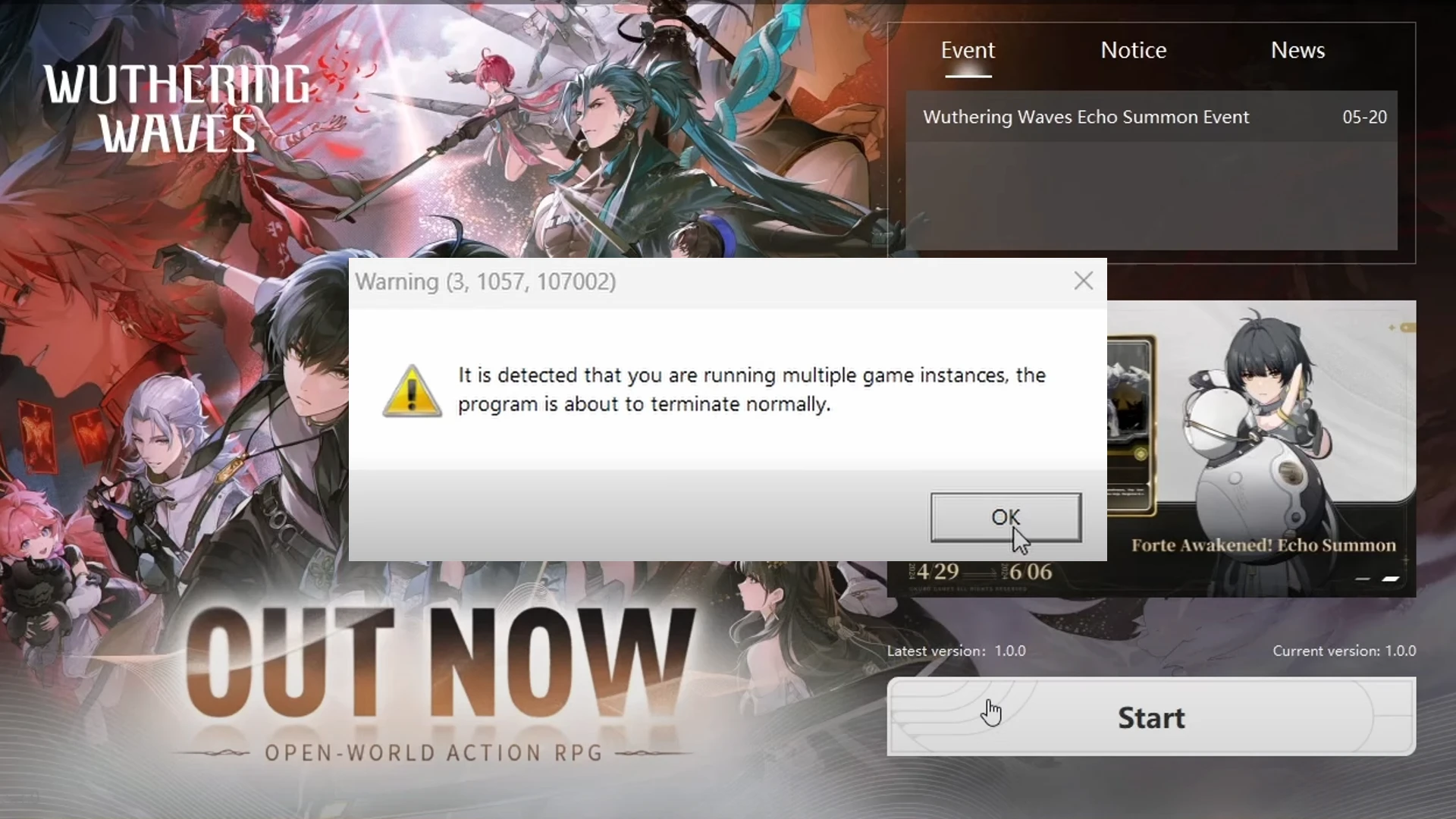
Wuthering Waves: Fix “Multiple Game Instances” Error (Simple Steps)
Stuck with the “Multiple Game Instances” error in Wuthering Waves? This guide offers a quick fix:
Wuthering Waves Multiple Game Instances Error
- Open your Task Manager (Ctrl + Shift + Esc) and look for any running Wuthering Waves processes.
- Right-click and select “End Task” to terminate them.
- You must end all running Wuthering Waves tasks.
- Once you’ve closed any background processes, relaunch Wuthering Waves. The error shouldn’t appear again.
Wuthering Waves Shortcut Icon Not Showing
- Simply go to your Wuthering Waves installation folder.
- Look for Wuthering Waves Launcher.exe file, right-click, and Create Shortcut.
- Paste on Desktop.
Other Fixes
Pre-Installation Note
If you experience this error after a large pre-installation (around 18GB), simply close and reopen the game after the download finishes. This can also resolve the issue.
There you go! If you have any further Wuthering Waves questions, feel free to ask.
Download Wuthering Waves:

Jhimlerry Lacap
Loves to play DotA, LoL, and ML. Finished almost all FF series and enjoys playing MMORPG. Jhimlerry is also a former vocalist/bassist of a local band in the Philippines.
View all articlesRelated Articles
View All
Nintendo faces fallout from unprecedented game leaks
Inside Nintendo, the mood shifted sharply after reports of a massive leak appeared online. What began as speculation soon turned...
Dell Gaming Laptops: The Smart Choice. Why the G-Series is the Wise Gamer’s Secret Weapon
We are living in a golden age of PC gaming. Games are more beautiful, more complex, and more immersive than...

Sims Rival InZOI Announces Official Release Date After Unexpected Delay
The highly anticipated life simulation game InZOI has officially announced its Early Access release date after an unexpected delay, much...