
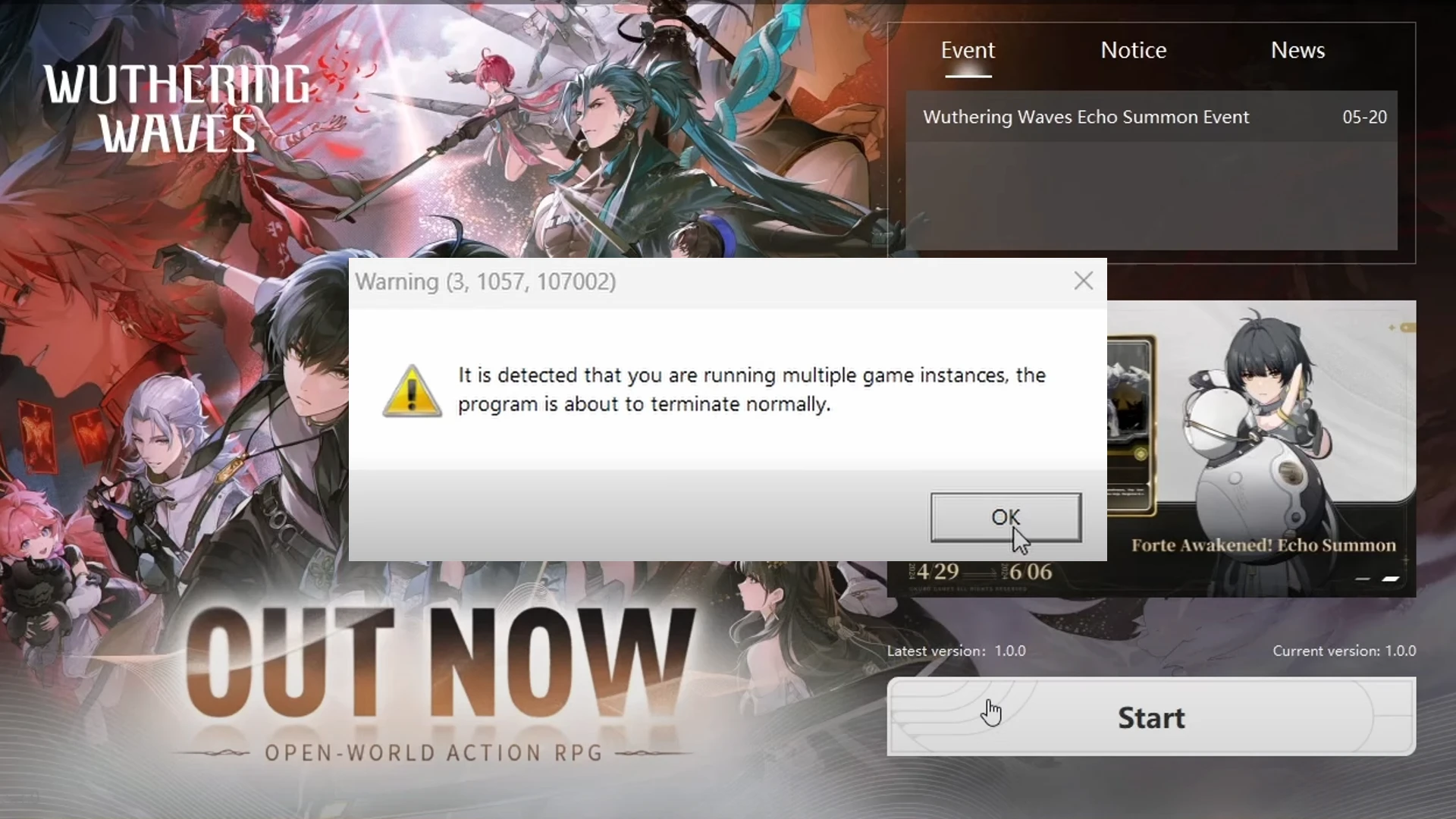
Wuthering Waves: Fix “Multiple Game Instances” Error (Simple Steps)
Stuck with the “Multiple Game Instances” error in Wuthering Waves? This guide offers a quick fix:
Wuthering Waves Multiple Game Instances Error
- Open your Task Manager (Ctrl + Shift + Esc) and look for any running Wuthering Waves processes.
- Right-click and select “End Task” to terminate them.
- You must end all running Wuthering Waves tasks.
- Once you’ve closed any background processes, relaunch Wuthering Waves. The error shouldn’t appear again.
Wuthering Waves Shortcut Icon Not Showing
- Simply go to your Wuthering Waves installation folder.
- Look for Wuthering Waves Launcher.exe file, right-click, and Create Shortcut.
- Paste on Desktop.
Other Fixes
Pre-Installation Note
If you experience this error after a large pre-installation (around 18GB), simply close and reopen the game after the download finishes. This can also resolve the issue.
There you go! If you have any further Wuthering Waves questions, feel free to ask.
Download Wuthering Waves:

Jhimlerry Lacap
Loves to play DotA, LoL, and ML. Finished almost all FF series and enjoys playing MMORPG. Jhimlerry is also a former vocalist/bassist of a local band in the Philippines.
View all articlesRelated Articles
View All
Major Gaming Shake-Up Could Put EA and Pokémon Go Under One Roof
Saudi Arabia’s growing influence over the global games business could be heading for another major shake-up. A possible merger involving...

Sega Reveals Why Its Ambitious Super Game Had to Be Canceled
Big ambitions often shape the future of gaming, but transforming a bold vision into a successful global product requires more...
Nintendo Confirms Back-to-Back Directs for Zelda 40th Anniversary and Upcoming Switch 2 Games
Nintendo is preparing a packed week of announcements with two Direct presentations scheduled on consecutive days. One will celebrate a...